Wednesday, April 17, 2013

Faux Sketching or I Never Thought I'd Ever Use Gaussian Blur

I'm going to turn this photo of Tom Cruise into a sketch.


original
1. Duplicate Background (as usual)

2. Remove Colour
Image>Adjustments>Gradient Map>Black and White

3. Duplicate Layer

4. Invert Image
Image>Adjustments>Invert

5. Select Blend Mode: Colour Dodge (screen will turn white)

6. Filter>Blur>Gaussian Blur>12 pixels (6-12 pixels work best).

Note: Filter>Other>Minimum>1 pixel is done instead of the above step if you're "sketching" a photo that is anything other than a portrait, e.g. landscape.

7. Merge layers to a new layer by:
  • (Alt+Shft+Ctrl+E) which is the shortcut, or
  • Layers>Merge to a new layer while depressing Alt key

b/w sketch

To Add Colour:

8. Duplicate background layer

9. Move background layer above all others

10. Select Blend Mode: Colour, 50%
    coloured sketch
Who knew Gaussian Blur could be so useful?

Selective Colouring Using Layer Masking

Layer Masking can be used to "reveal" colour underneath.

First you have to turn a colour photo to black and white. There are two ways to do this and both methods use adjustments layers which create a layer mask over the image.

The adjustment layers are:

1. Hue/Saturation, or
2. Gradient.

Original
Method 1
  • Open the colour photo
  • Add a new Hue/Saturation Adjustment Layer above the photo. 
  • Move the Saturation slider all the way to the left.
  • Select the thumbnail and paint over the leaf with black paint. (Note: painting with white paint will cover up any mistakes) 
NOTE: Optional: If you want the screen "painting" to turn red, which is kinda neat actually, then Alt+Shift and click on the left-most thumbnail before you paint with black.

leaf shows through
Method 2
  • Open the colour photo
  • Add a new Gradient Adjustment Layer, Black to White above the photo.
  • Select the thumbnail and paint over the leaf with black paint. (Note: painting with white paint will cover up any mistakes)
NOTE: Optional: If you want the screen "painting" to turn red, which is kinda neat actually, then Alt+Shift and click on the left-most thumbnail before you paint with black.
this is more like true b/w and is created with Gradient

You can change the opacity of the paintbrush if you desire. Here I had my paintbrush set at an Opacity of 27% while painting over the geranium in black.


Reminds me of an old colourized photo
To give it an old-fashioned feel, add some noise by:

With the background activated, select Filter>Noise>Add Noise

5% Noise, Gaussian, Monochromatic

Hand Colouring a Black and White Photo

I started with a colour photo.
Original
Remove colour by, either:

Image>Adjustments>Gradient Map>Black to White

b/w

Or, another way to remove colour is by:

Enhance>Adjust Colour>Remove Colour

I find this one more grey than b/w
  • Add a plain New Layer above the photo
  • Use Blend Mode: Colour
  • Paint with orange paintbrush
100% opacity
Here's what it looks like with a reduced opacity:
70% opacity
Of course, I just had to posterize it.

I just love posterizing!

Tuesday, April 16, 2013

Merge Photos Together Using Layer Masking

Layer Masking can be used to merge photos together.

Merging Photos

In this example I took two photos and "merged" them together by using Layer Masking.


1. Open two photos and put each on a separate layer.
2. Insert a New Adjustment Layer>Level between the two photos.
3. Select the top photo, move it around where you want it, select Layer>Group with Previous
4. Select the bottom photo, move it around where you want it.
5. Click on the Layer Mask Thumbnail
6. Select Gradient Tool
7. Select Black, White
8. Using the gradient tool draw an arrow approximately where you want the photos to merge.
9. There will be black painted on the thumbnail in that location.

Monday, April 15, 2013

At the Bird Sanctuary

We had a great day at the George C. Reifel Migratory Bird Sanctuary in Delta.

The greeting party
The first time I saw a Wood Duck, I thought it looked way too exotic to be native to North America. I thought it belonged with my Dad's Golden Pheasants which hail from India.

The exotic-looking Wood Duck

Ubiquitous Mallards in the foreground

Usually these guys are in the water but this time I had a great view of his big blue feet.
American Coot
Just look at those feet

I don't know what kind of duck she is. She looks feminine although she's probably a drake.
Cute duck with no name
This is a Hooded Merganzer. The one on the chart had a white head so this must be a baby. This is also the name of my favourite restaurant in Penticton named for the bird that flew around during the construction.

Hooded Merganzer
This cute little guy is a Kinglet and is the first time I've seen one. He was very photogenic and my favourite. Can you tell?


Sparrow—What I call any bird I don't know the name of

Sparrow
Sparrow
There was some interesting plant life.

I haven't seen this plant before


Unfurling Ferns
Looks like a morel mushroom

The sanctuary is not just for birds.

Turtles on a log


Carp are not very pretty but I do like the bubbles (almost look photoshopped)


Young heron doing the flamingo

Signs of Spring were everywhere.


Canada Goose sitting on a nest
Duck nest on the path


Sandhill Crane nesting—I love the heart on his head
The birds love it here—cranes (man-made) just visible in the background

Bufflehead


Young Bufflehead I think because he has the same coloured eye
I love the reflection and the ripples
Red-winged Blackbird at one of the many feeders

The Red-winged Blackbirds were in full chorus

Just a glimpse of the red wing
In a more traditional pose

Another exotic-looking duck—check out that very long tail

We heard the Snow Geese honking a way off in the distance and here is a photo I took earlier in the year not far from the sanctuary.

Snow Geese love the farmer's field

We've been to the bird sanctuary a few times and we usually only see Mallard ducks but this time we saw many species.


So serene (except for the ducks quacking) but I wouldn't have it any other way!

Friday, April 12, 2013

Screenprints and Stencils 101

Screenprinting is a process that utilizes the properties of a stencil; some areas are blocked out and other areas are printed through. Here are the kinds of stencils, how to make them, and how they can be used.


BLACK STENCIL

The black stencil has no shades of grey, just black and white.

Select Image>Adjustments>Threshold and Filter>Artistic>Cutout


Black and White Stencil


Background Layers vs Adjustment Layers

In the first example the colour doesn't bleed through. That's because the green background layer is below the stencil layer. I guess it's not really a true stencil because the white is still there. More on that below.
Background Layer Below Stencil Layer

In this next picture, notice that the colour does bleed through. This is because a New Fill Layer>Solid Colour was added above the black stencil layer. Blend Mode: Multiply was used so that the layers would blend. In this case the Opacity is 100% but it could be changed to whatever one desires.

New Fill Layer>Solid Colour Above Stencil Layer

 
Separating the Black Stencil

The black stencil can be separated into two new layers: "black only" layer and "white only" layer. This will simulate a "true" stencil and get rid of the white layer that was above.

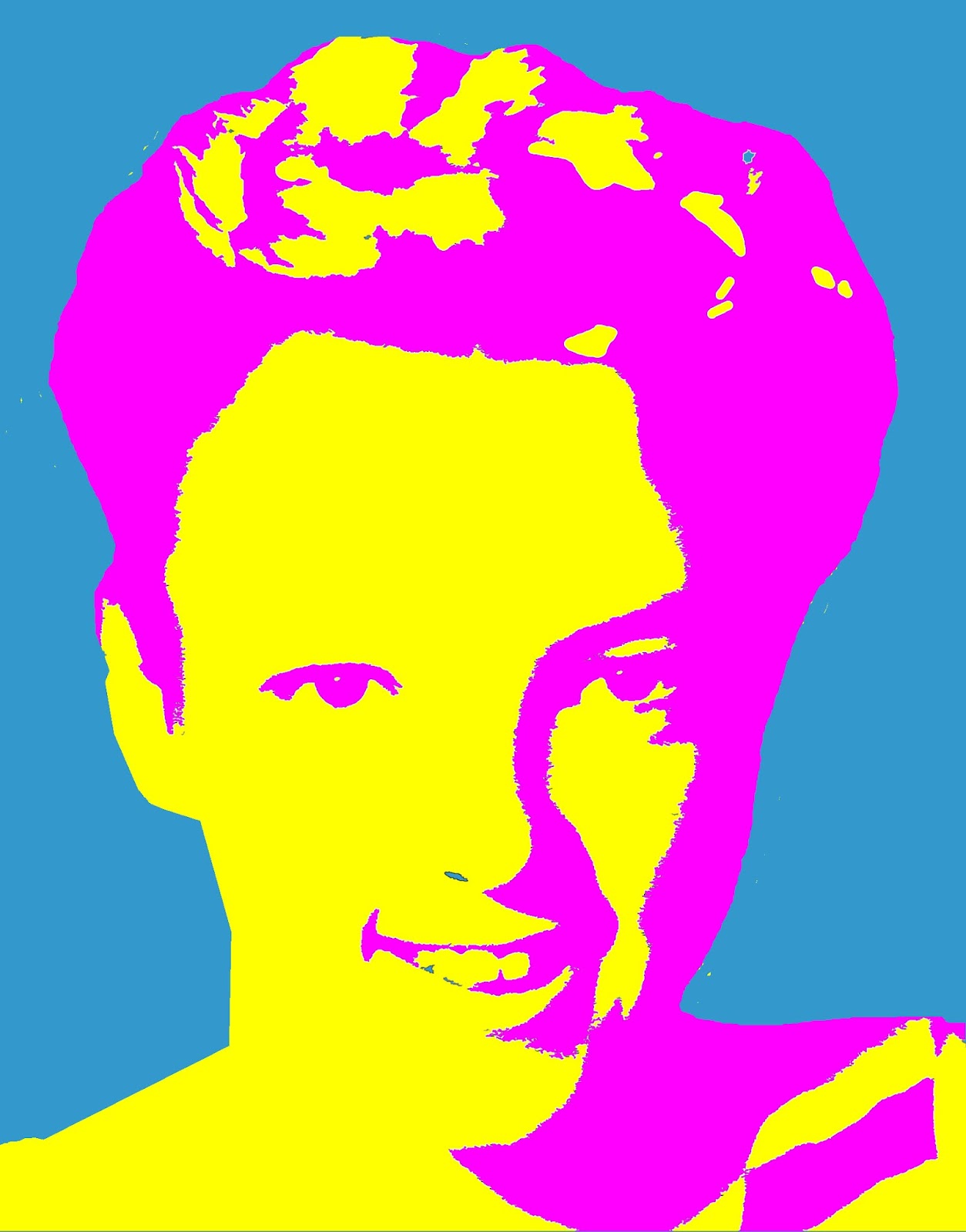
In this example the "black only layer" was coloured magenta and the "white only layer" was coloured yellow. The two layers were then placed on a blue background

"True" Stencil Used Here
 
Colouring Specific Parts of the Screenprint

New layers can be added to colour specific parts of the stencil, e.g. hair. In the example, the hair was "coloured" in a separate layer and the face was coloured in another separate layer. Those two layers were combined with the stencil (shades of grey in this case) and placed on an orange background.


Strangely, these colours look good together
 
SHADES OF GREY STENCIL

The shades of grey stencil has not only black and white but, you guessed it, grey. It's a bit more complicated to make.

1. Adjust the Brightness/Contrast
  • Adjust to your liking
Enhance>Adjust Brightness/Contrast>Brightness/Contrast

2. Apply the Cutout Filter
Filter>Artistic>Cutout 4, 2, 2

3. Adjust the Levels of RGB
  • Adjust so that you have black, white and 3-4 shades of grey.
Enhance>Adjust Brightness/Contrast>Levels

4. Re-apply the Cutout Filter to refine the edge simplicity to 4

5. If desired, Re-adjust the levels of RGB to reduce the shades of grey.
 

Shades of Grey Stencil
 
Create New Fill or Adjustment Layer vs Create a New Layer
 
New Fill Layers or Adjustment Layers are more flexible than plain old new layers because they provide you with a layer mask thumbnail that you may (or may not) choose to use.
 
In the next three examples, I ignored the layer mask thumbnail that was provided for me because I didn't need it.
 
Create New Fill Layer (thumbnail ignored)
 
I played around with the adding New Fill Layers ABOVE the photo and here are just a few of an infinite number of possible screenprints.
 

I added three new separate New Fill Layers in orange, yellow, and red and put each layer in Overlay Mode with 100% Opacity above the photo.

Overlay Mode is effective


 Here I added a New Fill Layer>Gradient in pink above the photo.


Gradient Adjustment Layer

Here's where I added two New Fill Layers>Solid Colour in pink, Screen Mode, and blue, Multiply Mode above the photo.
Screen and Multiply Mode on Solid Layers
 
LAYER MASKING

Lastly, I wanted to experiment with Layer Masking. This is where you paint while in the layer mask thumbnails. When you paint with black paint you "erase" what's below and painting with white puts it back in.

Create New Fill Layer (thumbnail used)

Here I added a New Fill Layer>Solid Colour in pink, Blend Mode: Multiply above the photo.

While in the layer mask thumbnail, I painted over the eyes and teeth with black paint so that the pink was "erased".

White teeth and eyes
Then I added a New Fill Layer>Gradient spectrum "rainbow" below the photo.

Lasty, I selected the layer mask thumbnail and used the special effects brush "Scattered Roses" to paint in the roses on the background.


I could play with this all day!

Wait a minute!

That is what I'm doing!